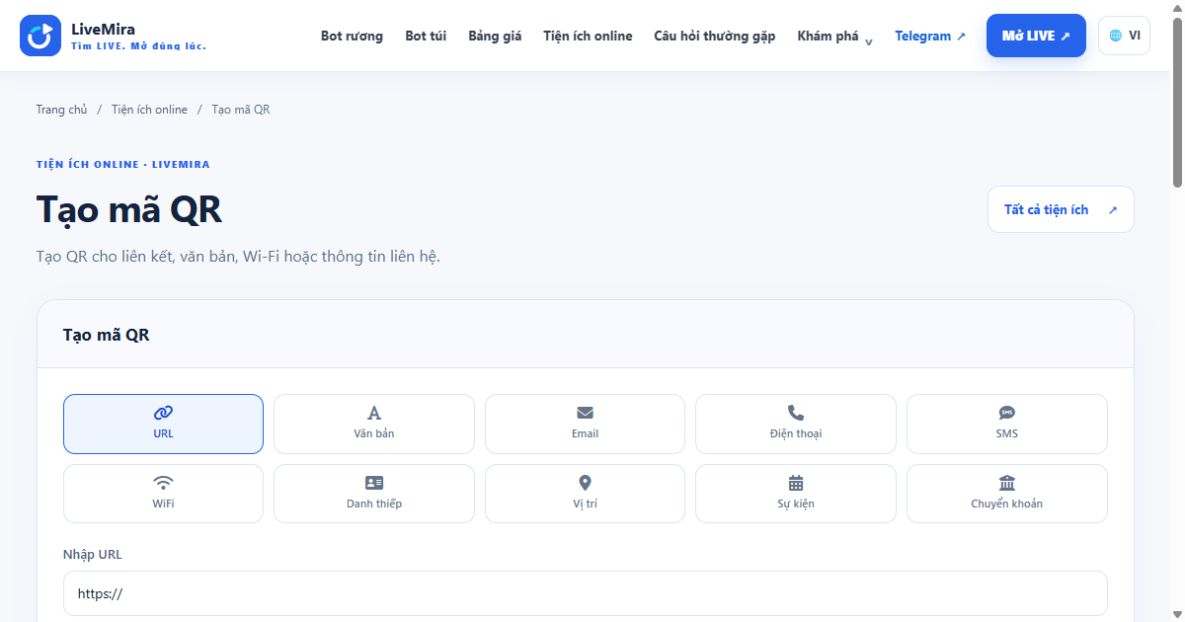
QR code generator: links, Wi-Fi, payments and logo
Create QR codes for links, text, Wi-Fi, contacts, email, SMS and VietQR payments locally in your browser.
Processed locally
Free QR code generator for every use
QR codes make sharing information quick and reliable. This browser tool creates codes for websites, plain text, Wi-Fi credentials, vCard contacts, email, SMS, phone calls and bank transfers. Processing happens locally, so your text is not uploaded to a remote server.
Links receive HTTPS when you omit a scheme. Text is limited to 1,000 characters with a live counter. Wi-Fi values escape special characters safely. vCard output follows version 3.0 and supports accented names, phones, email, company, title, website and address.
The VietQR tab builds NAPAS/EMVCo payloads with bank BIN, account, amount and transfer memo. Vietnamese accents are removed from the memo for compatibility and a CCITT CRC16 checksum protects the payload. Confirm recipient details in your banking app before approving any transfer. The QR payload never asks for or contains a password, PIN, or one-time password (OTP); those secrets belong only in the official banking app.
Download PNG or JPG for menus, posters, business cards or phone wallpapers. Keep a clear quiet zone and print at least 2×2 cm. Choose a larger square when people scan from farther away, and test at the actual viewing distance with more than one phone. Static QR codes do not expire, but their destination website or account may change. Never publish passwords or other secrets in a public code.
Contrast determines scan reliability. Prefer dark modules on a light background, avoid busy backgrounds and test with several phones before printing. If scanning fails, increase contrast, reduce any logo and export at a larger size. Preview at the final physical size, preserve the four-module quiet zone, avoid stretching the square image, and compare every payment detail with the recipient through a trusted channel before printing or sharing. Keep the image sharp, do not crop finder patterns, and leave adequate margin on every side. For a public poster, provide a short human-readable label as well. This makes the code accessible when a camera cannot focus or when users need to confirm its purpose. Saved history stays in this browser, so it will not follow you to another device. Use Clear history after working on a shared computer to remove saved entries. For batch creation for menus or table cards, paste one item per line into the batch field to download a numbered ZIP and CSV; match every code to the correct dish or table before printing.
Before publishing, scan the physical proof under the lighting where customers will use it and confirm that all three finder patterns remain intact. Place a table-card code on a flat, reachable surface and keep text or decoration outside the quiet zone. If the encoded destination or account changes, generate a new code and record the review date in the design so staff do not reuse an old version.
- Choose a content type and enter data.
- Review the preview and scan badge.
- Choose a format and download.
- Test the code before sharing or printing.
Verify payment details in your banking app before confirming.
Do QR codes expire?
Static QR codes do not expire, although their destination can change.
Is VietQR safe?
Generation is local; always verify the recipient in your banking app.
Can I add a logo?
Keep a logo small with a white background so scanners can recover the modules.
What is the minimum print size?
At least 2×2 cm is recommended; test at the real scanning distance.
Is my data stored?
Nothing is sent to a server. History is kept only in your browser and can be deleted with the Clear history button.
Why is scanning difficult?
Low contrast, missing quiet zone, tiny output or an oversized logo are common causes.
How to use QR code generator: links, Wi-Fi, payments and logo
- Choose a content type and enter data.
- Review the preview and scan badge.
- Choose a format and download.
- Test the code before sharing or printing.
Verify payment details in your banking app before confirming.